
Announcement

Collapse
No announcement yet.

Partner 728x90

Collapse

Controlling Behavior of Indicator Scale

Collapse
X
 
  • Filter
  • Time
  • Show
Clear All
new posts

    Controlling Behavior of Indicator Scale

    Hi, I'm sure this has been asked, but I probably don't have the terminology right for the search. I want to control the scale of my indicator labels:
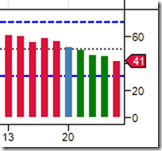


    What I'd really like is the Y-Axis to show the full range 0-100 with numeric labels at 70, 50 and 30 where I have Lines defined, in addition to the 41 above which is the indicator value and working as intended.

    Thanks in advance for any help.
    #2
    Hello Grasul,

    Thanks for your post.

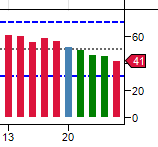
    In the area of the scale of the indicator (where "41" shows), right mouse click and select properties. In the chart panel properties window (likely panel 2) you can set a fixed scale. To actually see 0 and 100 levels I would suggest setting the minimum to -0.5 and the maximum to 105. For additional "grid" lines, set the interval type to "points" and set the interval value to 10 (you may need to try different values here).

    Comment


      #3
      Originally posted by Grasul View Post
      Hi, I'm sure this has been asked, but I probably don't have the terminology right for the search. I want to control the scale of my indicator labels:


      What I'd really like is the Y-Axis to show the full range 0-100 with numeric labels at 70, 50 and 30 where I have Lines defined, in addition to the 41 above which is the indicator value and working as intended.

      Thanks in advance for any help.
      I had a similar problem. I am not sure my idea is the best solution, but I got it to work. I created two dummy plots, one for the lower end of the range, and one for the higher end of the range and set the Plots[#].Pen.Color = Color.Transparent.

      Comment


        #4
        Originally posted by jeliner View Post
        I had a similar problem. I am not sure my idea is the best solution, but I got it to work. I created two dummy plots, one for the lower end of the range, and one for the higher end of the range and set the Plots[#].Pen.Color = Color.Transparent.
        That a good idea.

        I ended up doing this:

        Code:
        //Fix the scale, 0-100.
        DrawText("adjustTop"+CurrentBar,true,".",00,100,0, rangeColor,textFont,StringAlignment.Near,tr,tr,0);
        DrawText("adjustBot"+CurrentBar,true,".",00,0,  0, rangeColor,textFont,StringAlignment.Near,tr,tr,0);

        Comment

        Latest Posts

        Collapse

        Topics Statistics Last Post
        Started by Geovanny Suaza, 02-11-2026, 06:32 PM
        0 responses
        571 views
        0 likes
        Last Post Geovanny Suaza  
        Started by Geovanny Suaza, 02-11-2026, 05:51 PM
        0 responses
        330 views
        1 like
        Last Post Geovanny Suaza  
        Started by Mindset, 02-09-2026, 11:44 AM
        0 responses
        101 views
        0 likes
        Last Post Mindset
        by Mindset
         
        Started by Geovanny Suaza, 02-02-2026, 12:30 PM
        0 responses
        548 views
        1 like
        Last Post Geovanny Suaza  
        Started by RFrosty, 01-28-2026, 06:49 PM
        0 responses
        549 views
        1 like
        Last Post RFrosty
        by RFrosty
         
        Working...
        X